Design your store with a free theme
Your theme decides how your shop looks — the header, colours, fonts, layout and the way products are displayed. You do not need to pay for a theme or write any code to get a clean, professional store. This guide builds a good-looking shop using two excellent free themes.
This guide assumes WooCommerce is installed — see Install and set up WooCommerce if it is not yet.
What a theme does (and what it doesn't)
- The theme controls appearance — your logo, colours, fonts and overall layout.
- WooCommerce controls the shop — products, cart, checkout and payments.
- Plugins (like ours) add features on top.
You can change your theme at any time without losing your products or orders, so feel free to experiment.
Step 1 — Find and install a theme
- In your WordPress dashboard, go to Appearance → Themes.
- Click Add New Theme at the top.
- Search for a theme by name, hover over it and click Install, then Activate.
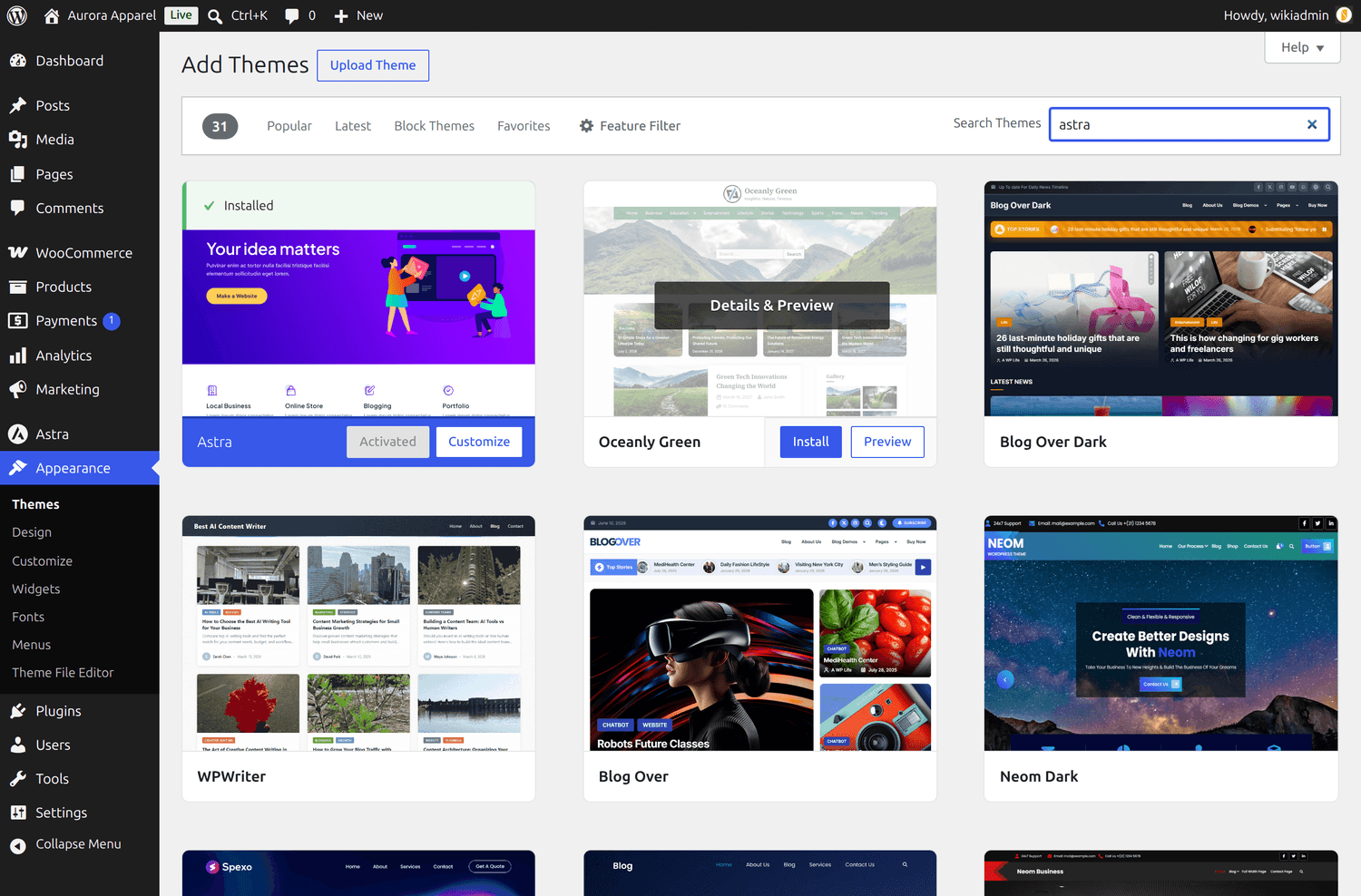 Search for a theme by name, then click Install — there are thousands of free themes here.
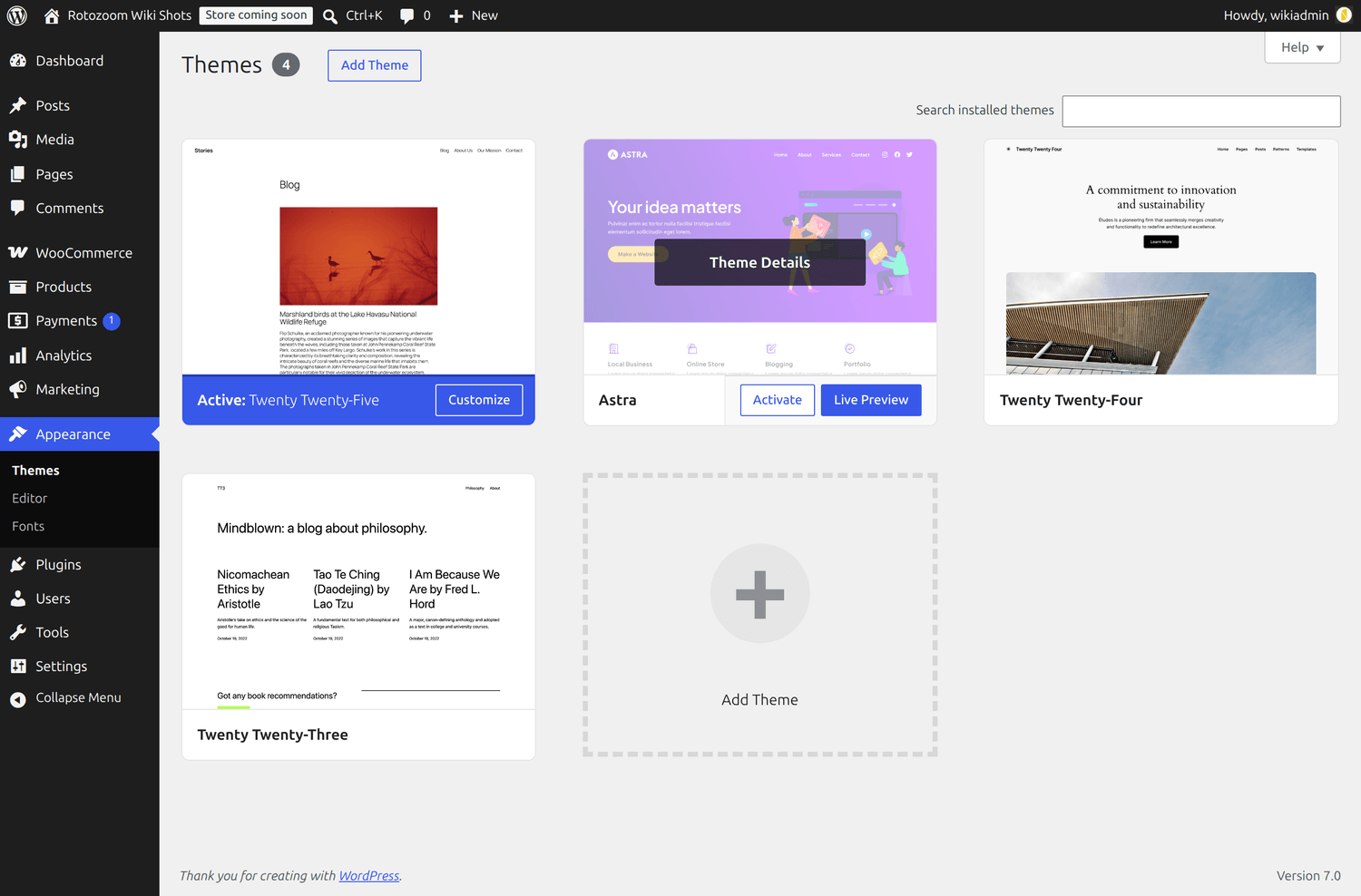 Once installed, a theme appears here — click Activate to make it live.
Below we walk through two free themes that work beautifully with WooCommerce. Pick the path that suits you — you only need one.
| Astra | Twenty Twenty‑Five | |
|---|---|---|
| Best for | Fastest good-looking result | Staying 100% "native" WordPress |
| You edit it with | The Customizer (simple panels) | The Site Editor (blocks) |
| Learning curve | Very gentle | A little more hands-on |
| Made by | Brainstorm Force | The WordPress team |
Path A — Astra (the quick, guided way)
Astra is one of the most popular free store themes. It is light, fast and edited through the friendly Customizer, which shows a live preview of every change.
Make it your own with the Customizer
After activating Astra, go to Appearance → Customize. The left panel lists everything you can change; the right side previews your live site as you edit.
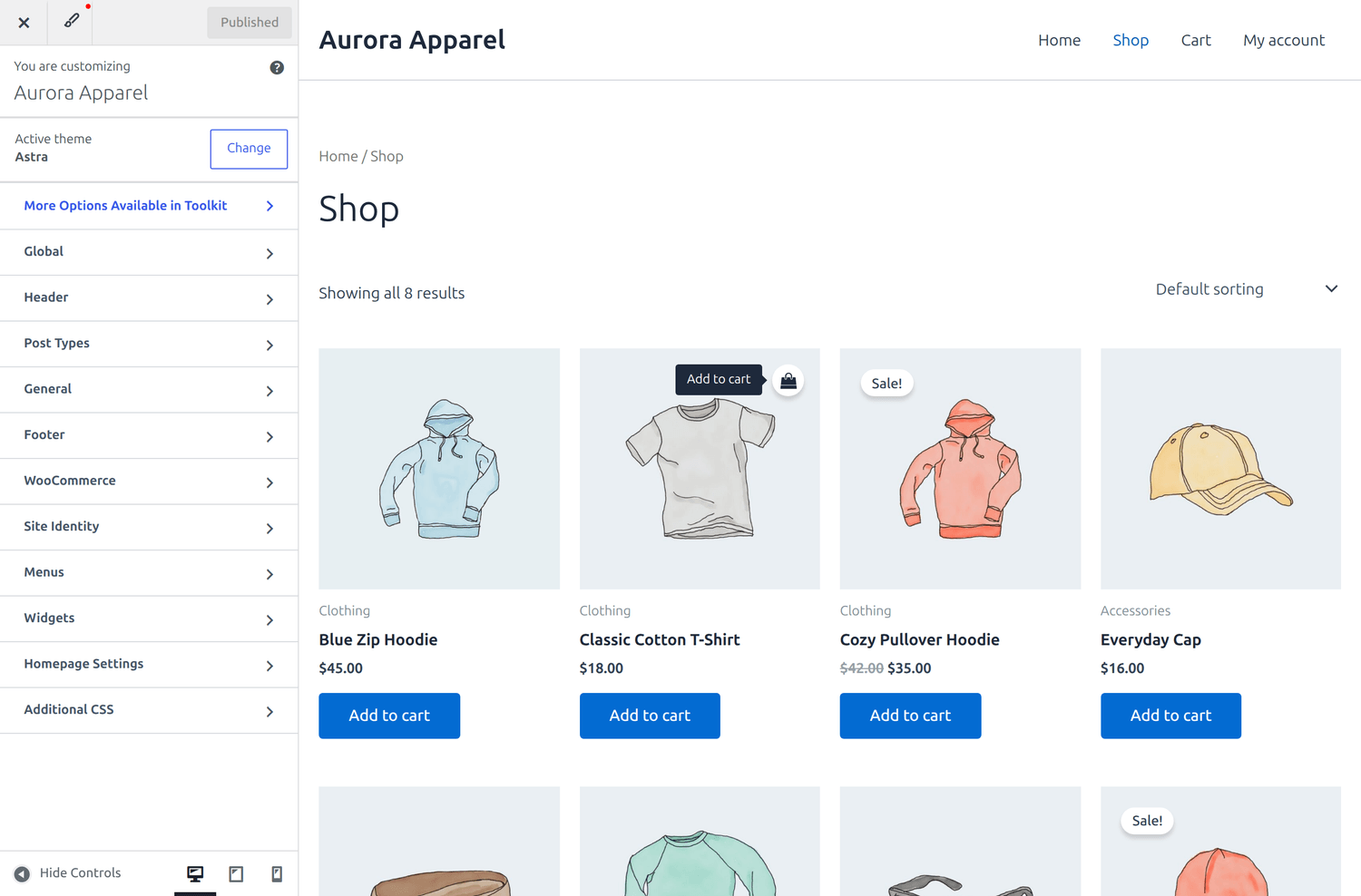 The Customizer: change a setting on the left, see it instantly on the right.
Add your logo and store name — open Site Identity. Upload a logo, set your Site Title and Tagline, and choose how big the logo should be.
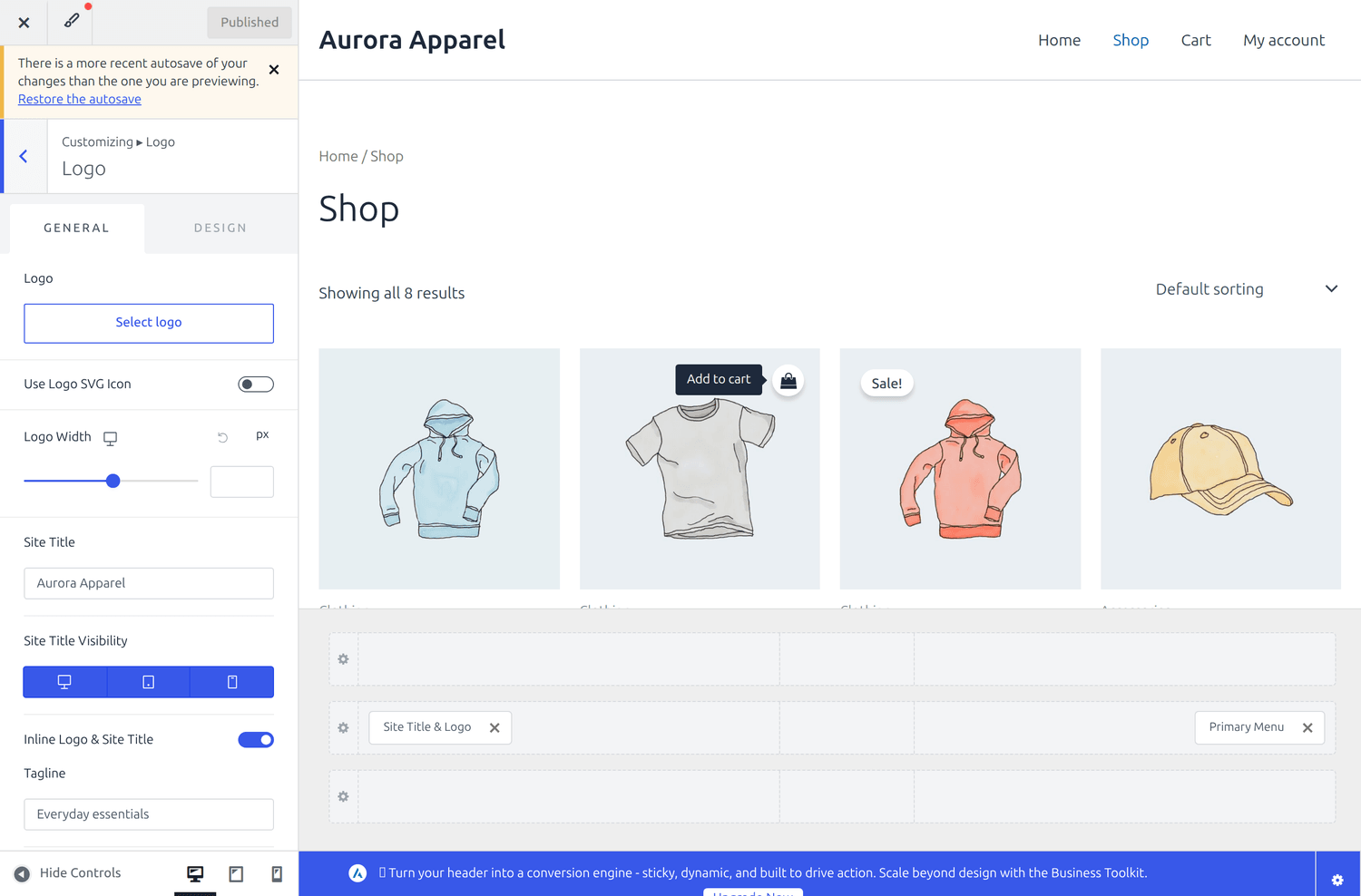 Site Identity is where you upload your logo and set your store name.
Choose your colours — open Global → Colors. Pick a ready-made palette or set your own Accent, link, heading and text colours. Your accent colour is used for buttons and links across the whole shop, so it is the quickest way to make the store feel like your brand.
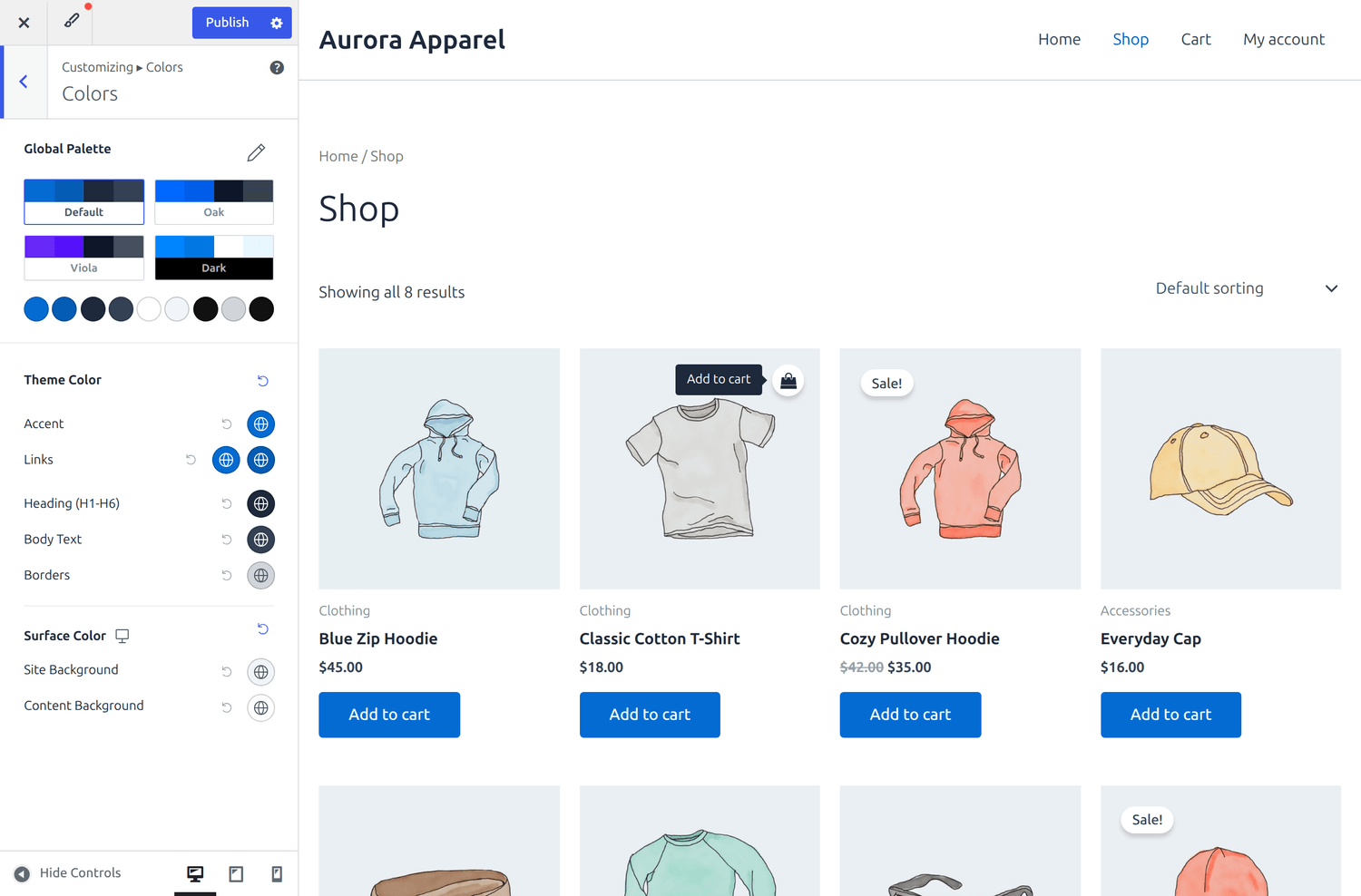 Set one accent colour and it carries through buttons and links everywhere.
Pick your fonts — open Global → Typography. Choose a ready-made font preset, or set specific fonts and sizes for your body text and headings. Good typography makes a store feel polished without any extra work.
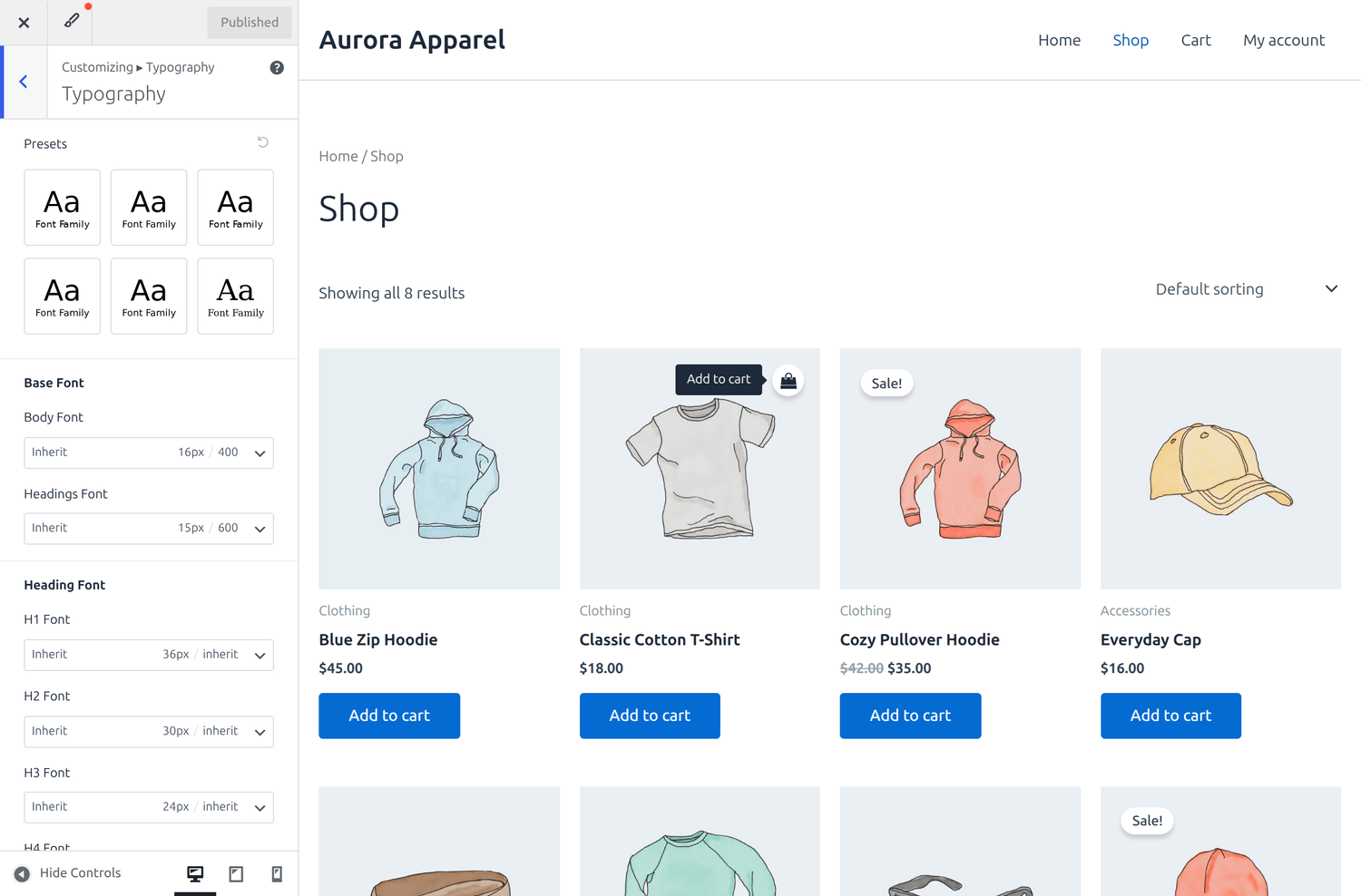 Typography controls your fonts site-wide — start with a preset, then fine-tune if you like.
Arrange your header — open Header Builder. Drag elements (your logo, menu, search, cart) into the left, centre or right of the header until it looks the way you want.
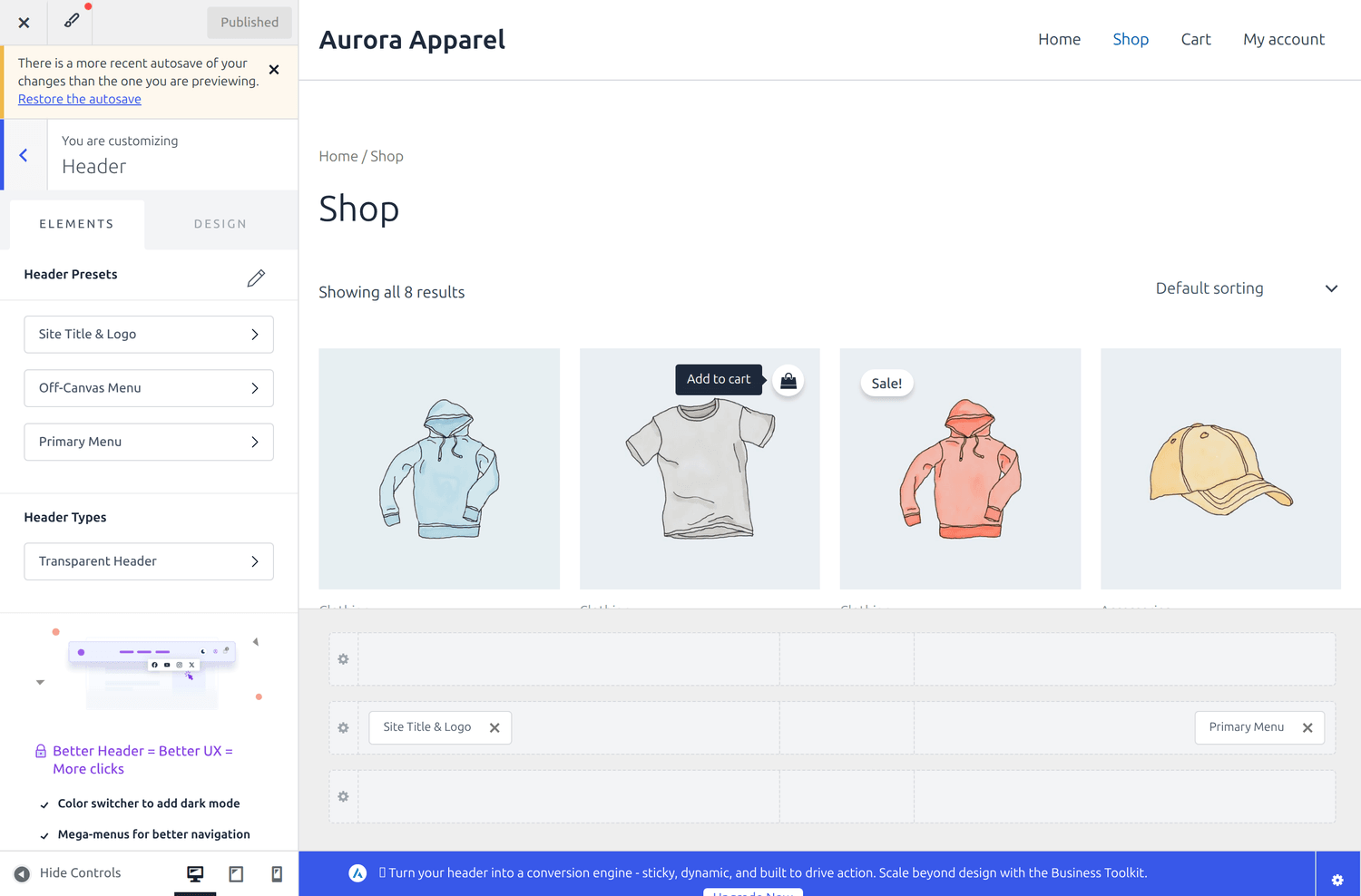 Drag your logo, menu and cart into place in the Header Builder.
When you are happy, click Publish to save your changes.
Your storefront
With WooCommerce active, Astra automatically gives your Shop and product pages a clean, modern layout — no extra setup needed.
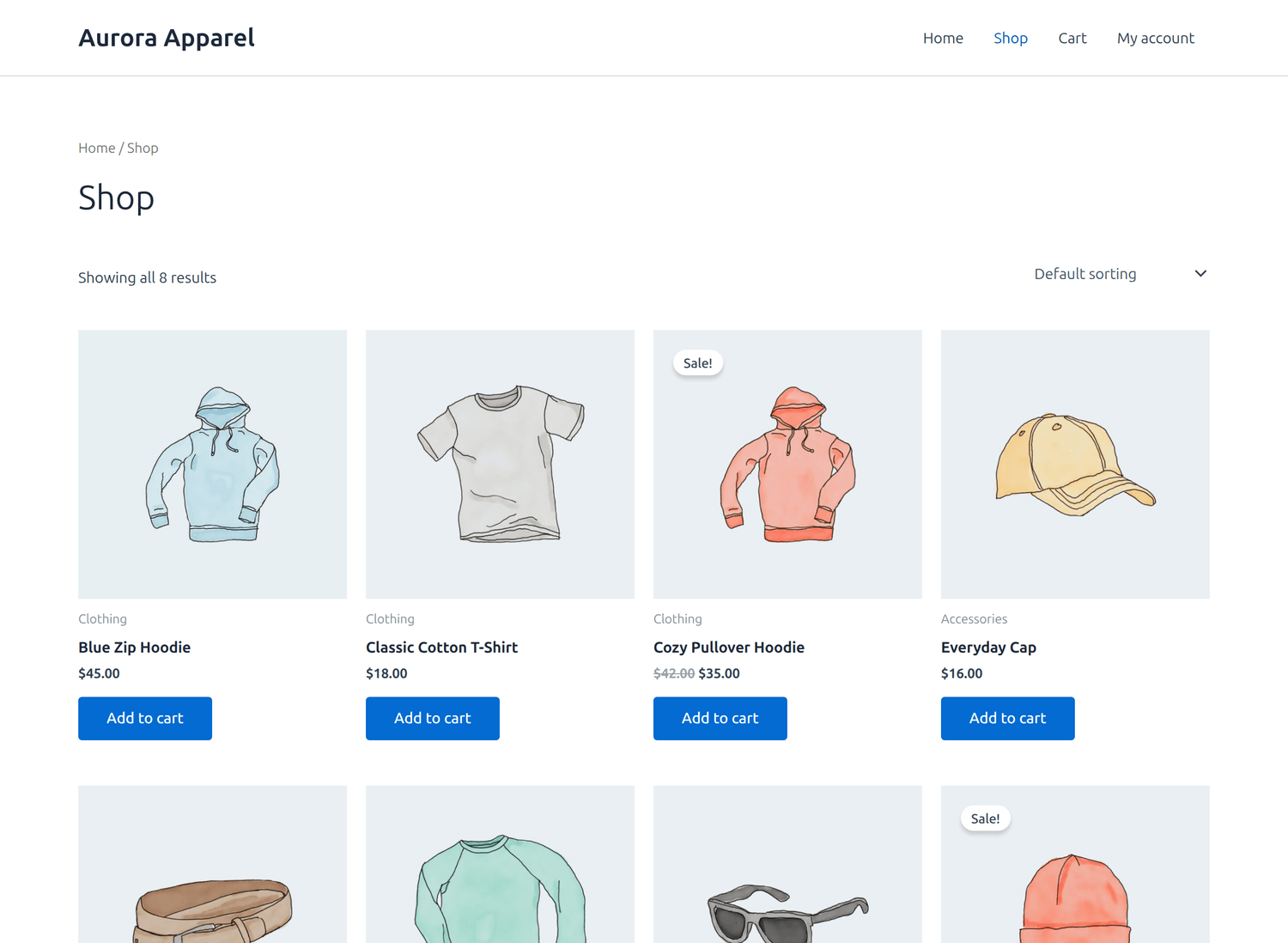 Your shop page with Astra — a neat product grid straight out of the box.
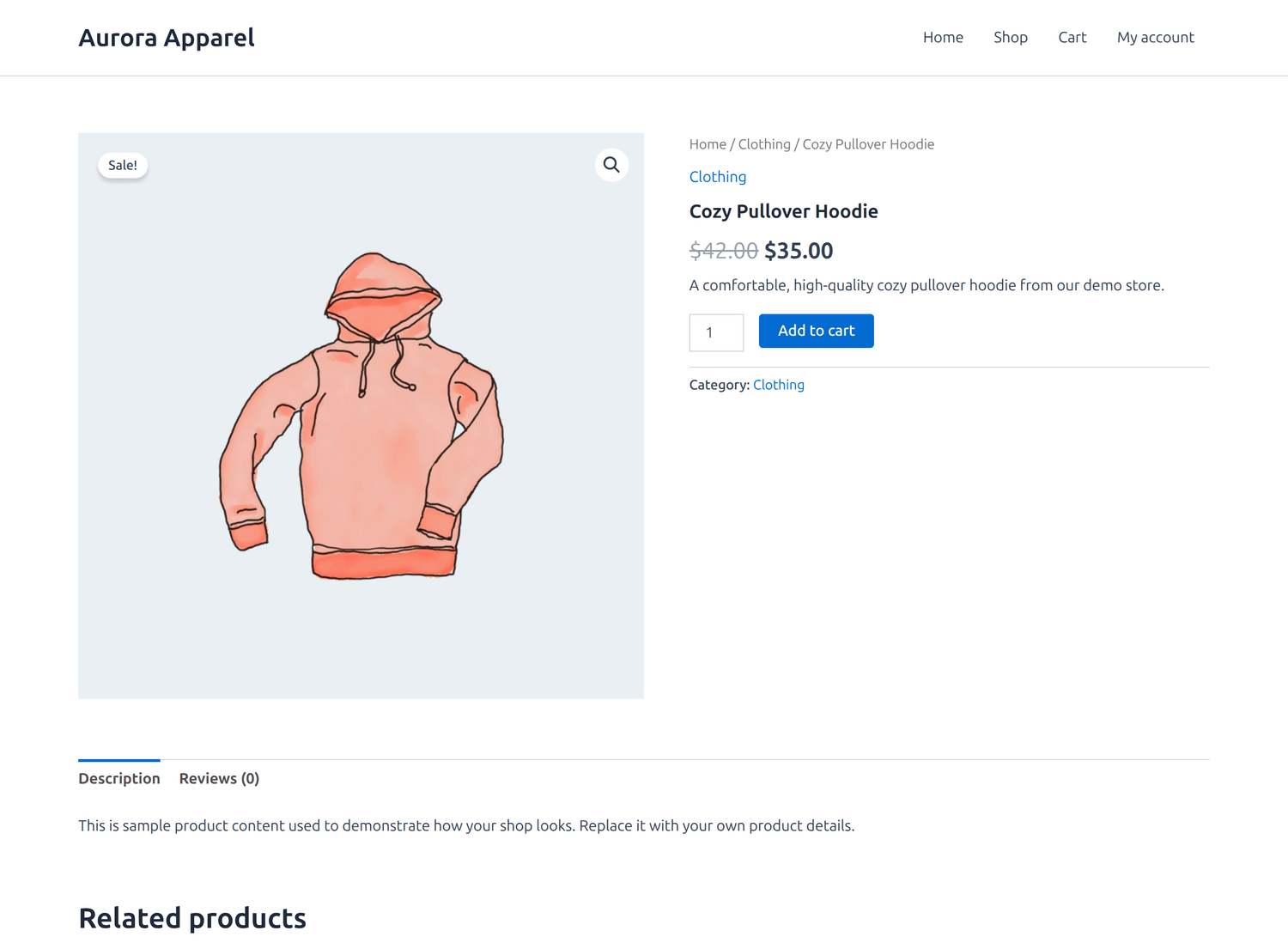 A product page — image, price, Add to cart and description, all styled automatically.
Optional shortcut — Starter Templates. Astra offers ready-made designs you can import in a few clicks via Appearance → Starter Templates. The current version asks you to connect a free account first. It is a fast way to start from a finished look, but it is entirely optional — everything above works without it.
Path B — Twenty Twenty‑Five (the official block theme)
Twenty Twenty‑Five is the default theme made by the WordPress team. It is edited with the Site Editor, where every part of your site is built from blocks — the same blocks you use when writing a page.
Open the Site Editor
Go to Appearance → Editor. You will see a dashboard for Styles, Navigation, Pages, Templates and Patterns, with a live preview of your site.
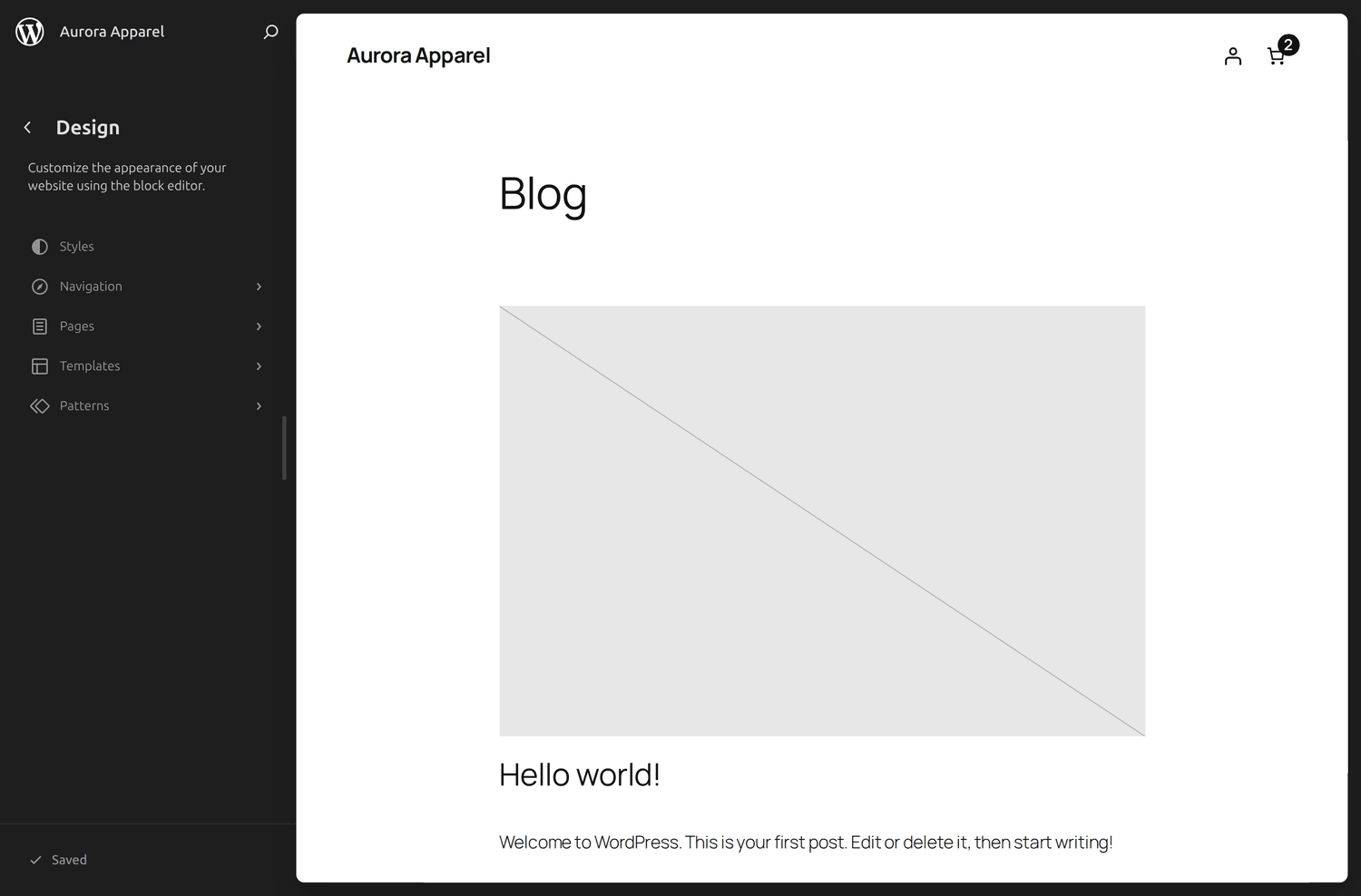 The Site Editor — your control centre for a block theme.
Change your look with Styles
Click Styles to change colours, typography, backgrounds and layout for the whole site at once. Click Browse styles to try ready-made style variations in one click.
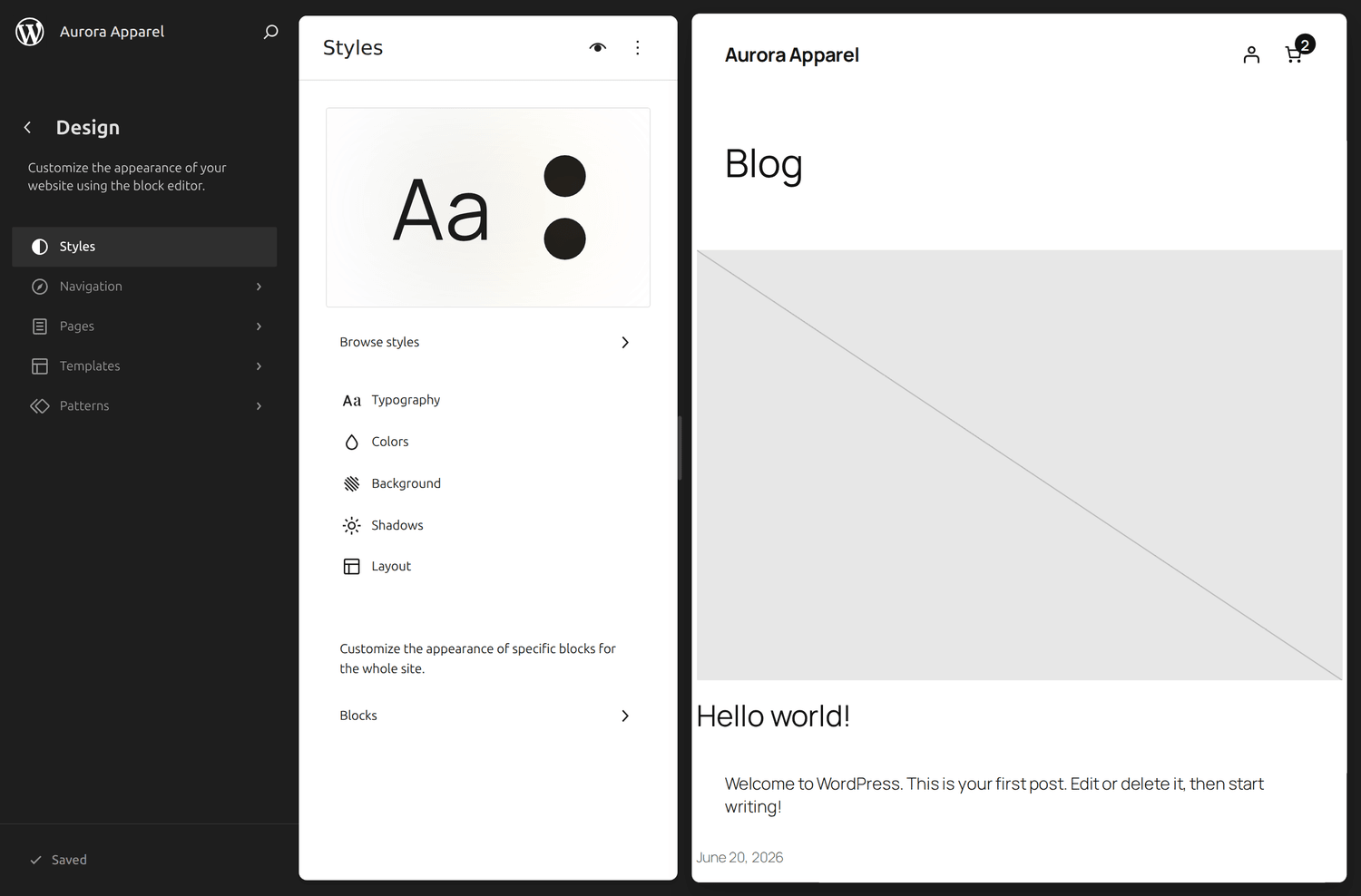 Styles change your colours and fonts site-wide — try the built-in variations first.
Edit templates
Under Templates you can open the template for any page type — your home page, blog, or single product — and rearrange its blocks. This is more hands-on than Astra's Customizer, but gives you complete control.
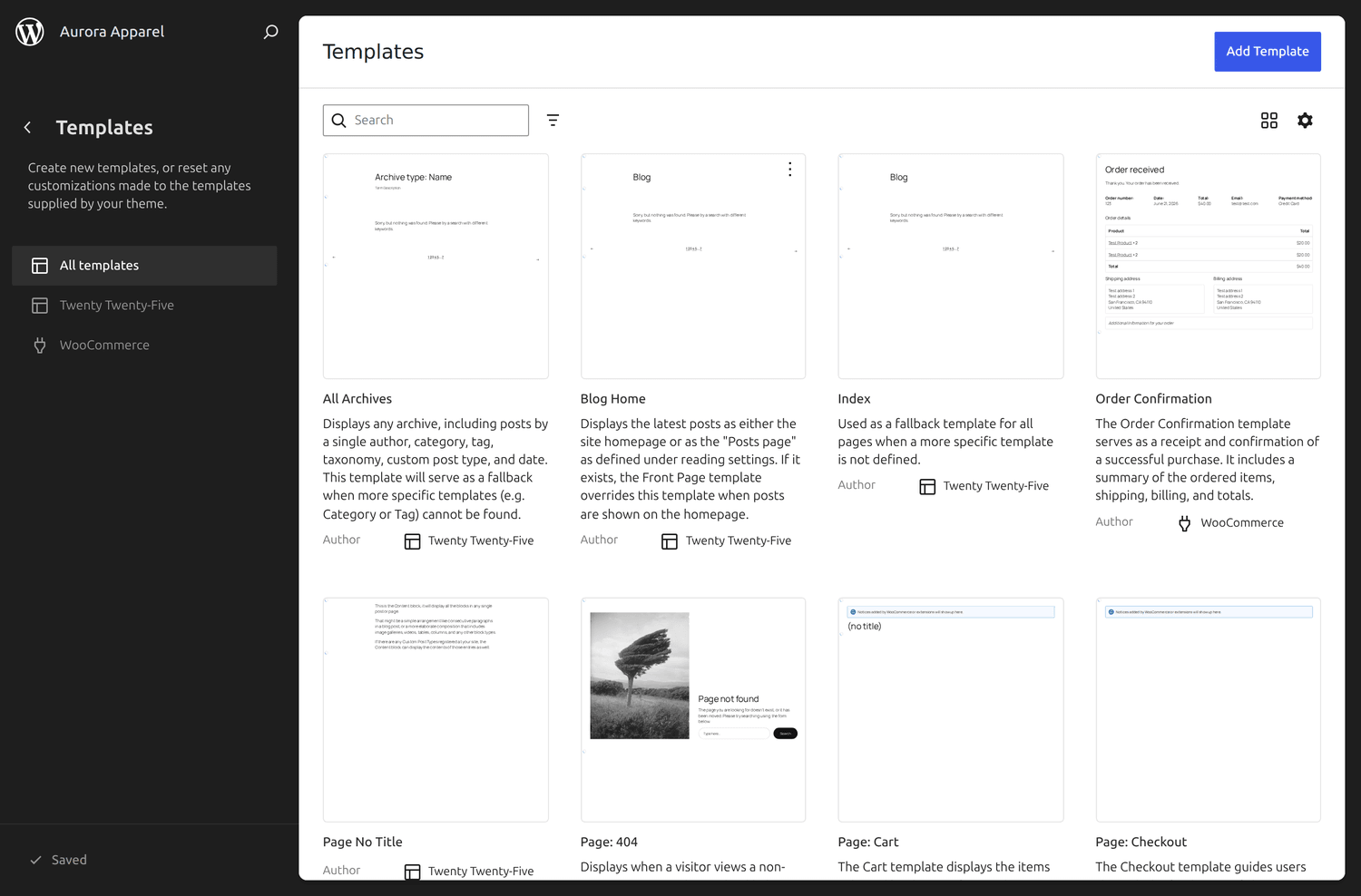 Templates let you edit the layout of each page type, block by block.
Your storefront
WooCommerce works with Twenty Twenty‑Five too, giving you a clean, minimal shop that uses the theme's own styling.
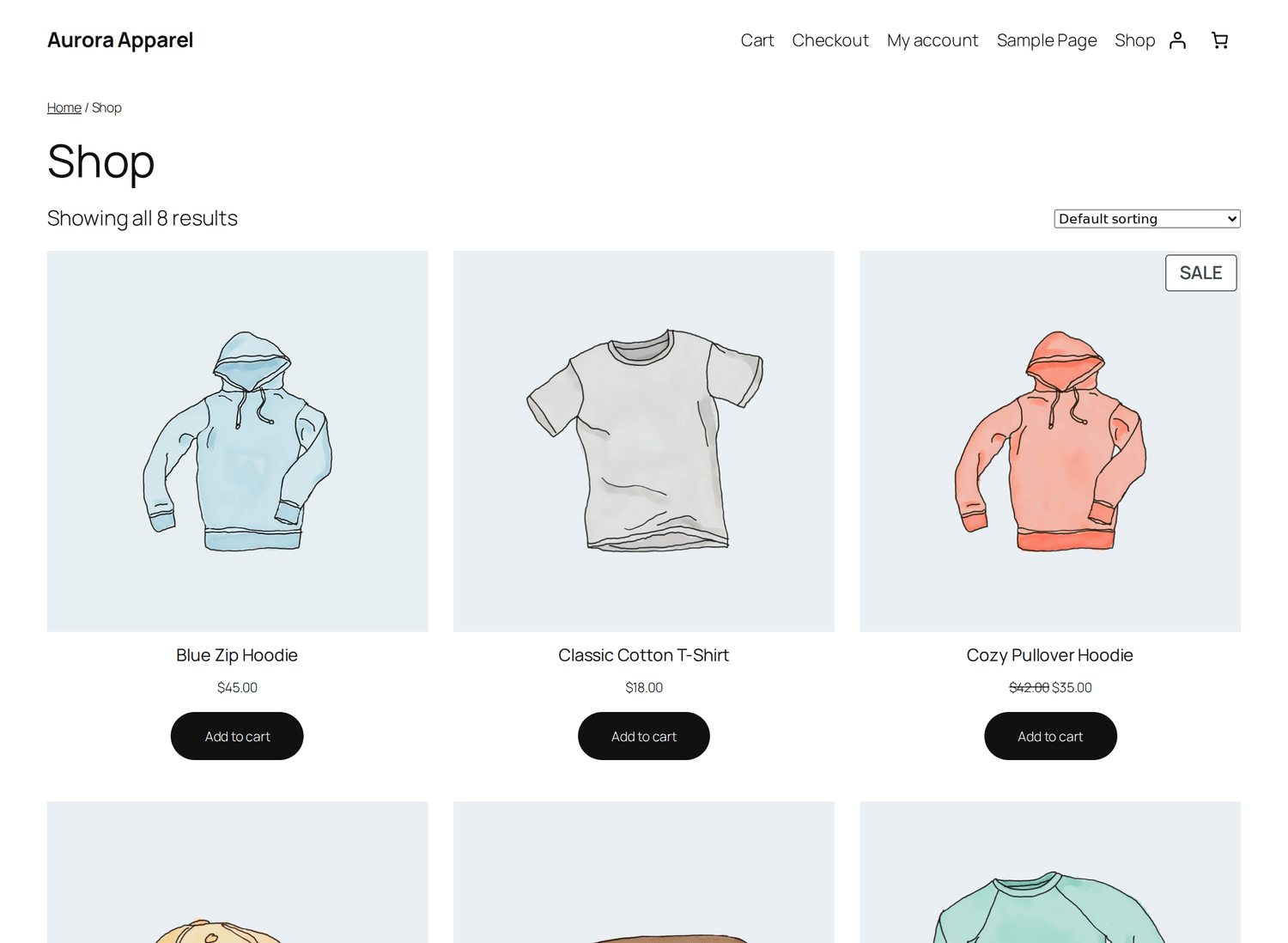 The same shop with Twenty Twenty‑Five — minimal and fully "native" WordPress.
Which one should I choose?
- Choose Astra if you want the fastest path to a polished store with simple, guided panels. This suits most first-time shop owners.
- Choose Twenty Twenty‑Five if you prefer to stay with pure WordPress blocks and do not mind a slightly steeper learning curve.
There is no wrong answer, and switching later is easy.
Make your product images look their best
Whatever theme you choose, your product photos do most of the visual heavy lifting. Use clear, consistent images — and remember that large image files slow your site down. Our Image Optimizer plugin converts them to the modern AVIF format automatically, keeping your store fast without visible loss in quality.
Other good free themes
If neither suits you, these free themes are also excellent for WooCommerce and are edited in a similar way:
- Storefront — the official theme from the makers of WooCommerce.
- Kadence and Blocksy — fast, flexible, with their own starter designs.
- Neve and OceanWP — lightweight and beginner-friendly.
The skills from this guide — installing a theme, then using the Customizer or Site Editor — apply to all of them.